Build data pipelines with your AI coding assistant: Meet mage-agent
TLDR
Mage Agent connects your AI coding assistant to your Mage Pro cluster via MCP. With a single pip install and a one-line IDE config, your assistant can list, create, modify, and run Mage pipelines using natural language. A built-in sync engine keeps local files in step with the cluster so your team can work locally without losing the source-of-truth relationship with Mage Pro.
Introduction
You already talk to your AI assistant all day. You ask it to explain code, write functions, debug errors, and draft documentation. But when it's time to actually build or modify a data pipeline, you're back to clicking through the UI, copying and pasting code from one editor to another.
That gap closes today.
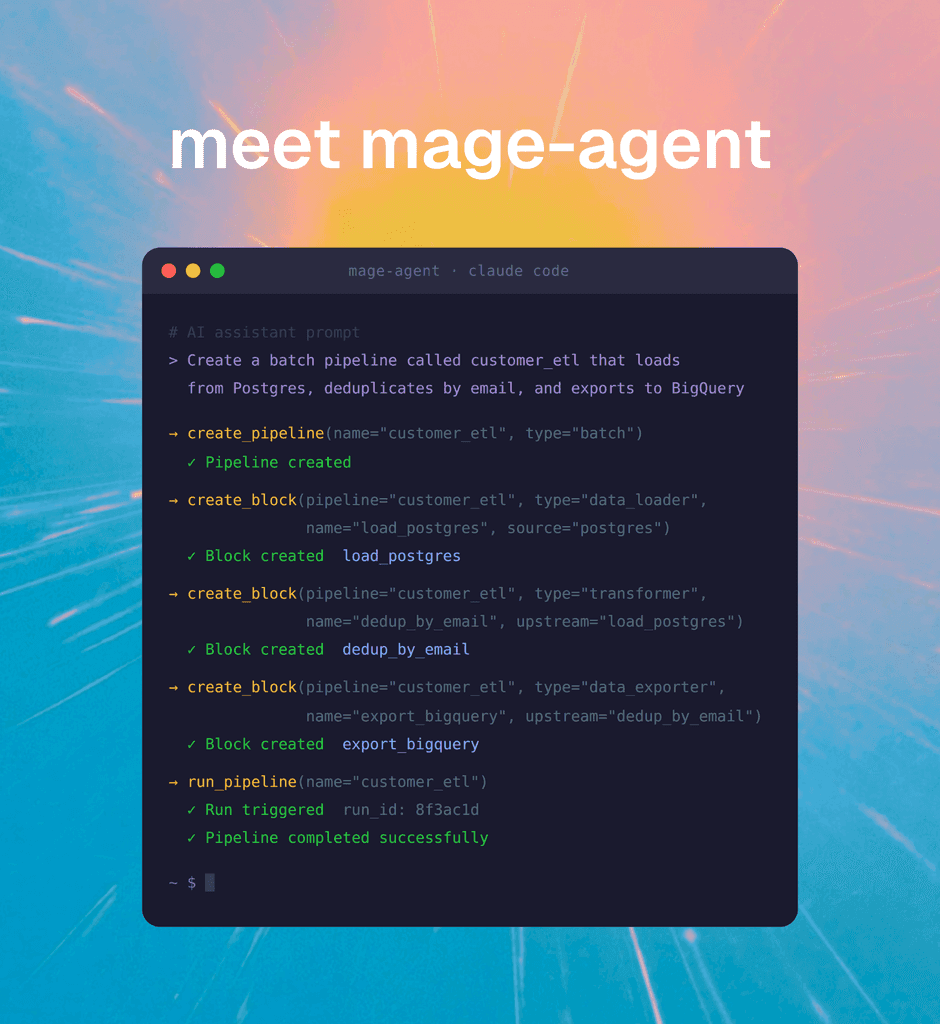
Mage Agent connects your local development environment directly to your Mage Pro cluster through the Model Context Protocol (MCP). Your AI assistant can now inspect, create, modify, and run Mage pipelines using nothing but natural language. No API calls. No tab switching. No context loss.
What is Mage Agent?
Mage Agent is a lightweight background process that runs alongside your IDE. It exposes your Mage Pro cluster to MCP-compatible AI clients, including Cursor, Claude Code, and OpenAI Codex CLI, through a structured JSON-RPC interface.
The architecture is clean:
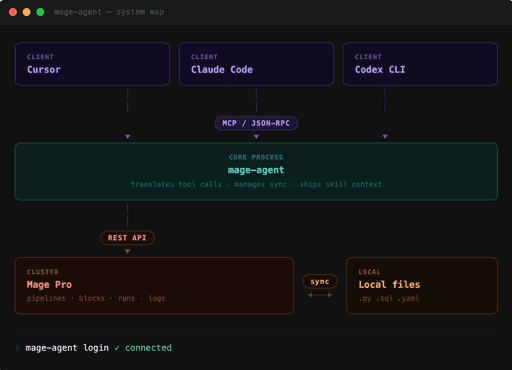
Three layers do the work:
MCP server. mage-agent runs as a studio process your IDE already knows how to talk to. When your AI assistant needs to list pipelines, create a block, or kick off a run, it sends a tool call over JSON-RPC. mage-agent translates that into a Mage Pro REST request and returns the result.
Skill resources. The server ships Markdown guidance files that give your AI assistant context on how pipelines, blocks, runs, and sync operations work in Mage. Your assistant isn't guessing. It has a reference.
Sync engine. A separate CLI layer keeps local files in step with the cluster. Pull the full remote project tree to your machine, push edits back or resolve conflicts file by file. Your AI edits locally while your cluster stays current.
Getting set up in under five minutes
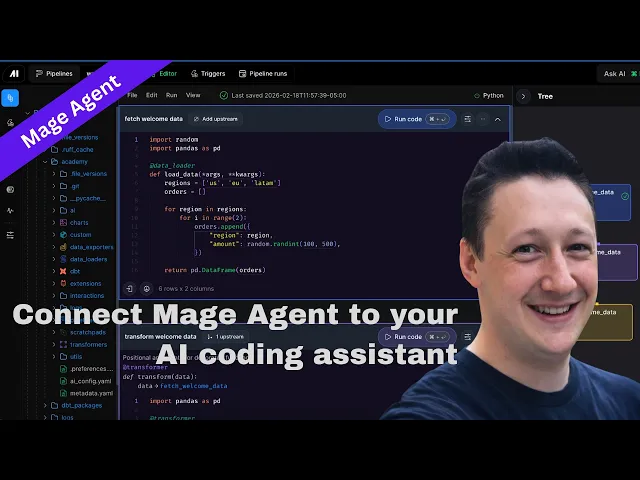
Setup is one install command, one login, and one config entry. You may want to consider creating a virtual environment prior to installing mage-agent. Follow the instructions below for installation. You can also reference the video below for more details.
Install:
pip install mage-agent
mage-agent --version
Log in to your cluster:
The CLI prompts for your cluster URL, email, and password. Credentials are saved to ~/.mage-agent/config.json. If you're working in a CI or scripted environment, pass everything as flags:
mage-agent login \\
  --cluster-url <https://your-mage-url> \\
  --email YOUR_EMAIL \\
  --password
Connect your IDE:
Add this to your MCP server config and restart the client:
{
  "mcpServers": {
    "mage-agent": {
      "command": "mage-agent",
      "args": ["mcp"
That's it. Your AI assistant now has full access to your Mage Pro cluster.
What your AI can actually do
Once connected, your AI coding assistant has access to a full suite of tools organized around the core building blocks of any Mage pipeline: pipelines, blocks, runs, and triggers.
Pipeline operations. Your assistant can list every pipeline in your project, fetch details on a specific one, create new pipelines by type (batch, streaming, integration), and delete pipelines. The call is as simple as asking: "List all my Mage pipelines."
Block operations. This is where things get interesting. Your assistant can read block source code, create new blocks with initial content already written, set upstream dependencies, and choose from every block type Mage supports: data loaders, transformers, exporters, sensors, dbt blocks, conditionals, and more. If you don't specify a config, mage-agent auto-matches the right block template. For integration pipelines, it auto-detects available sources and destinations.
A prompt like "Add a SQL transformer block to the customer_etl pipeline that deduplicates records by email" is a complete instruction. Your assistant handles the rest.
Pipeline execution. Trigger runs, fetch logs, monitor status. Ask your assistant to run a pipeline and show you the output without leaving your editor.
This isn't a narrow feature. It covers the full development lifecycle from creating a pipeline to debugging a failed run.
Why this matters for data engineering teams
The promise of AI-assisted development has always run into the same wall: your AI assistant can write code, but it can't actually do anything in your production systems. It doesn't know what pipelines you have. It can't check whether a run succeeded. It definitely can't create a new block without you copy and pasting the result somewhere else.
Mage Agent removes that wall.
Your AI assistant now has read and write access to your Mage Pro cluster. It knows what pipelines exist. It can create a new one from a description. It can look at a failing run, read the logs, and suggest a fix, then apply that fix to the block directly.
For teams managing dozens of pipelines across multiple workspaces, this is a meaningful productivity shift. Onboarding a new engineer gets easier when they can describe what they want to build and get a working pipeline scaffold back in seconds. Pipeline audits get faster when your assistant can list every pipeline, check dependencies, and flag issues without you clicking through every one manually.
The sync engine matters here too. Local files stay in step with the cluster, so your team can work in their preferred editors without losing the source-of-truth relationship with Mage Pro. Pull remote changes, make edits, push them back. This is a standard development workflow with no friction.
Start building
Mage Agent is available now. Install it with pip, connect your IDE, and start building pipelines the way you were always supposed to: by describing what you need in plain language.
The full MCP tools reference, IDE-specific integration guides, and sync documentation are available at docs.mage.ai/agent/introduction.
Want to see how Mage Pro handles your AI pipeline requirements? Schedule a free demo atwww.mage.ai/getdemo