Streamline data transfer: The ultimate data integration guide SFTP to BigQuery
TLDR
Securely move data from SFTP to Google BigQuery using Mage Pro for automated analytics. This guide walks you through setting up a pipeline, connecting to SFTP, choosing data streams, configuring replication, transforming data, connecting to BigQuery, triggering syncs, and verifying data. Automate your data flow, eliminate manual errors, and get valuable business insights!
Business use case
Many companies face a common challenge when managing transaction data from multiple systems, even multiple vendors. These organizations regularly receive sensitive financial information via SFTP as CSV files while their analytics teams require this data in a centralized warehouse like Google BigQuery for analyzing important business operations. Without automation, the process of transferring data from SFTP servers to analytics platforms creates multiple pain points. Manual transfers:
-
Consume valuable time;
-
Introduce security vulnerabilities when handling sensitive information;
-
Lead to data inconsistencies that impact analysis quality.
Implementing an automated SFTP to BigQuery pipeline addresses these challenges by streamlining the entire data flow. The business benefits are substantial, they:
-
Reduce processing time;
-
Eliminate of human error in transfers;
-
Produce consistent application of data transformations;
-
Improve monitoring capabilities;
-
Better data availability for analytics teams.
This integration is particularly valuable for any organization that regularly receives data via SFTP but needs that information in a modern data warehouse to power analytics, reporting, and business intelligence. By creating a reliable pipeline between these systems, companies can focus less on data logistics and more on extracting valuable insights that drive business decisions. Let’s get started building an integration pipeline in Mage Pro.
Step by step implementation guide
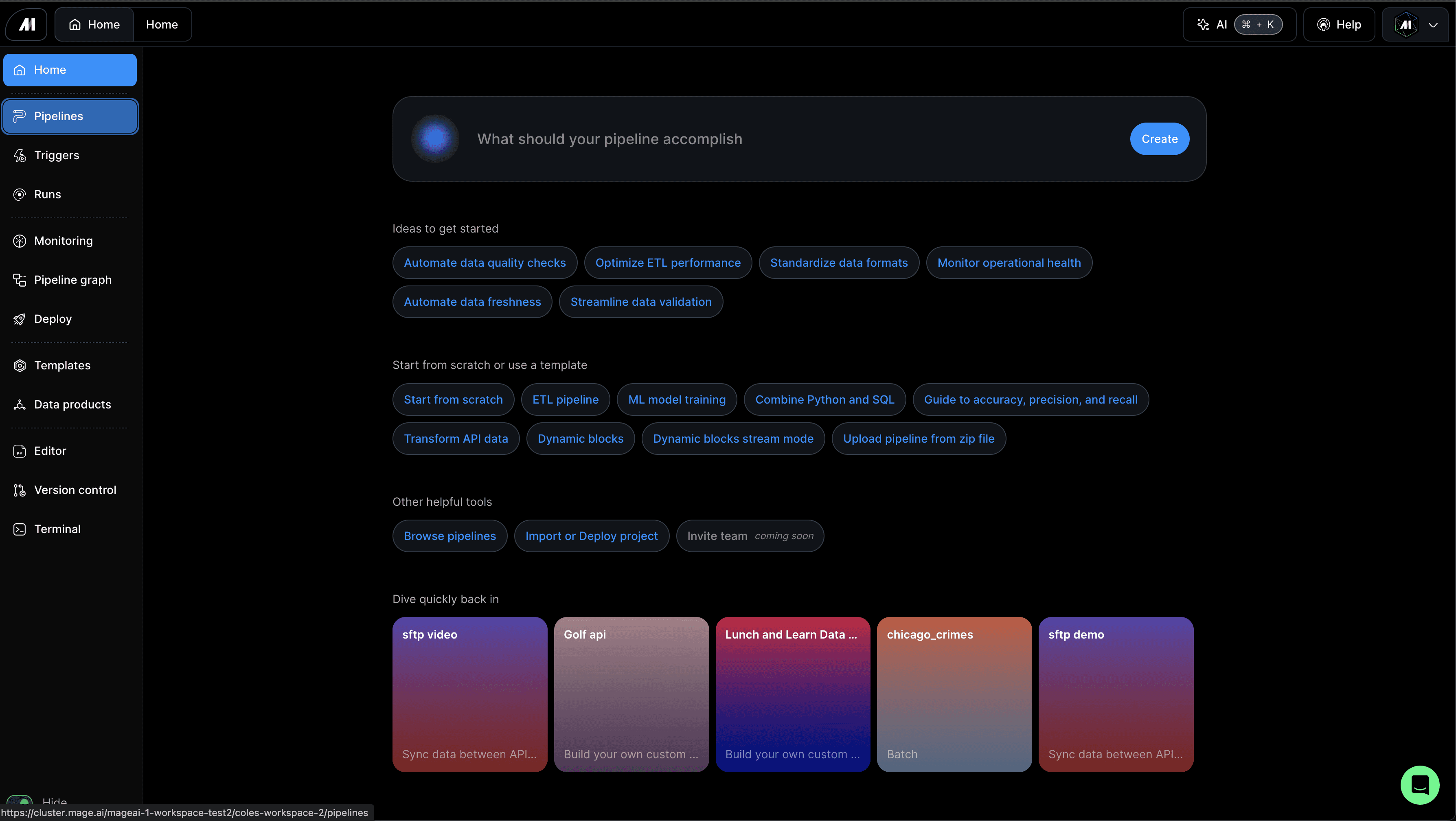
To begin, you'll want to log into your Mage Pro account, and once logged in, you'll land on the homepage. On the homepage, look for the navigation menu. Hover over it, and you’ll see several options. Your next step is to find the button labeled "Pipelines." Click on it to be directed to the pipelines page where all your data integration workflows are managed.
Step 1: Creating a new pipeline
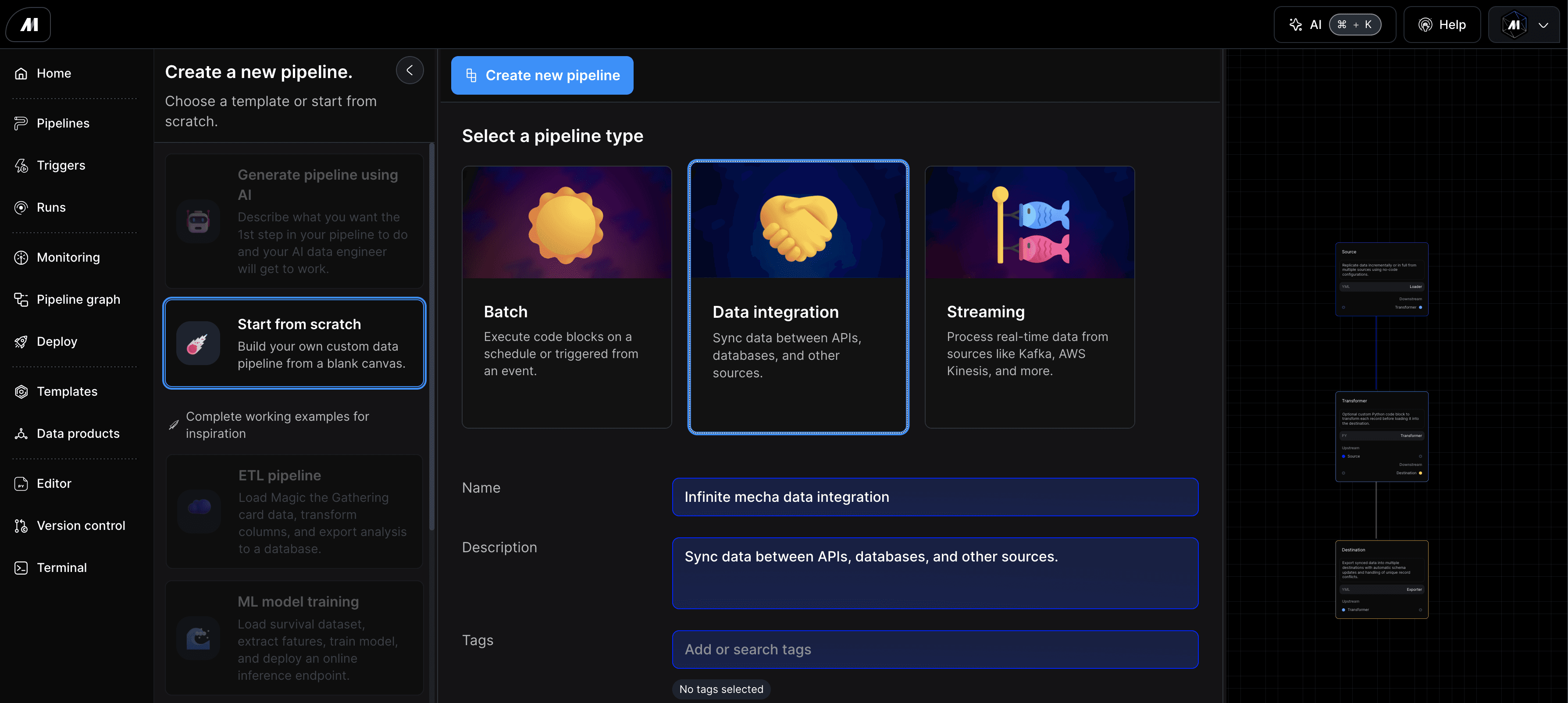
Once you are on the pipelines page, it’s time to create a new pipeline. Click on the green "New pipeline" button. You will be prompted to choose how you want to start your pipeline configuration. For this tutorial, select the option to "Start from Scratch."
Next, choose "Data Integration" as the type of pipeline you want to create. Name your pipeline something descriptive to easily identify it later. After naming it, hit the "Create new pipeline" button to proceed.
Step 2: Configuring the SFTP connection
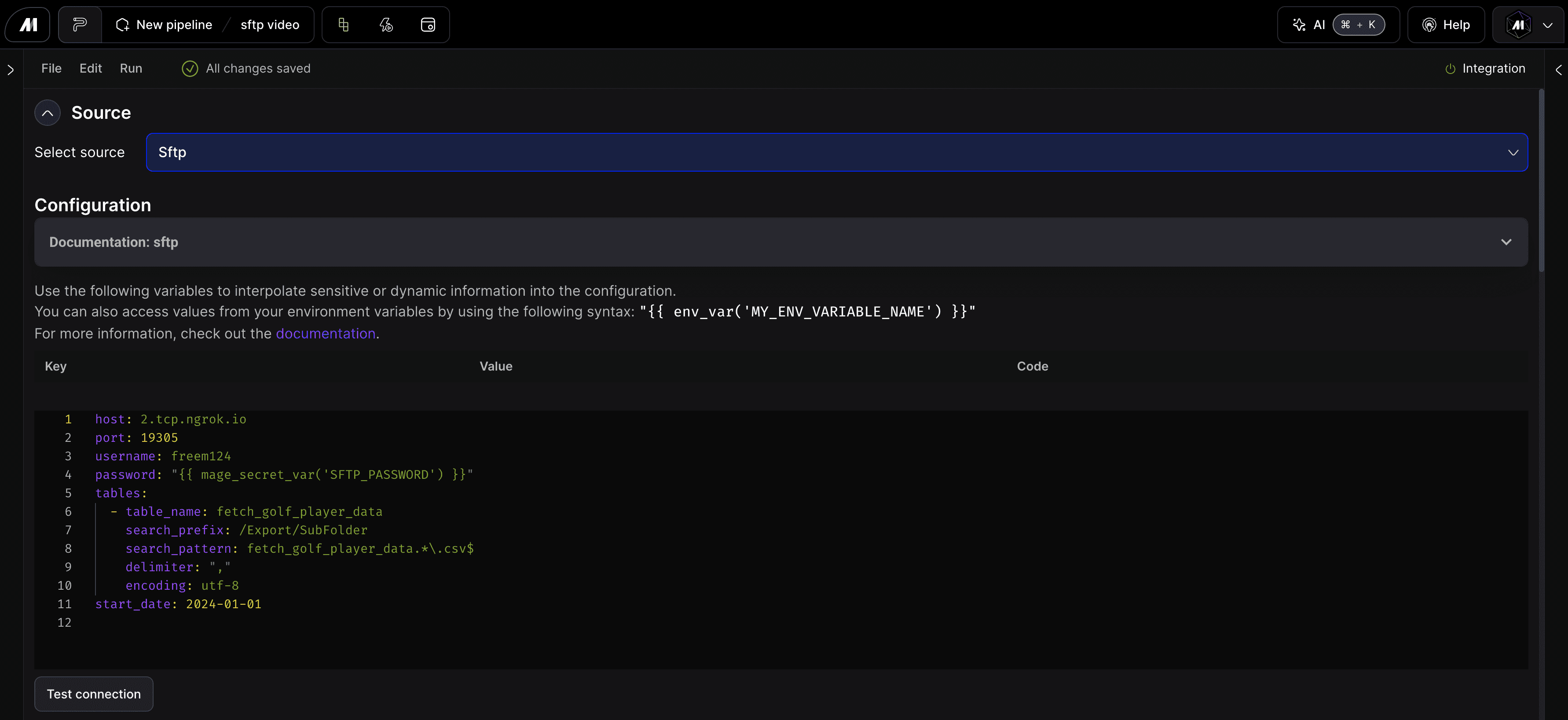
After creating your pipeline, you will enter the pipeline editor. Here, you’ll need to set up the SFTP connection. Click into the Select source dropdown and then scroll down the list until you see SFTP and click on it
This action will populate a YAML configuration file in the editor. You’ll need to fill in the necessary details for the SFTP connection, including the host, port, username, and password. Additionally, specify the table name to pull data, and set the folder prefix to "export" including any subfolder specifications if necessary.
Once you've entered the connection details, it's crucial to test the SFTP connection to ensure everything is set up correctly. Look for the "Test Connection" button and click it. If everything is configured properly, you should receive a positive confirmation of the connection.
Step 3: Selecting data streams
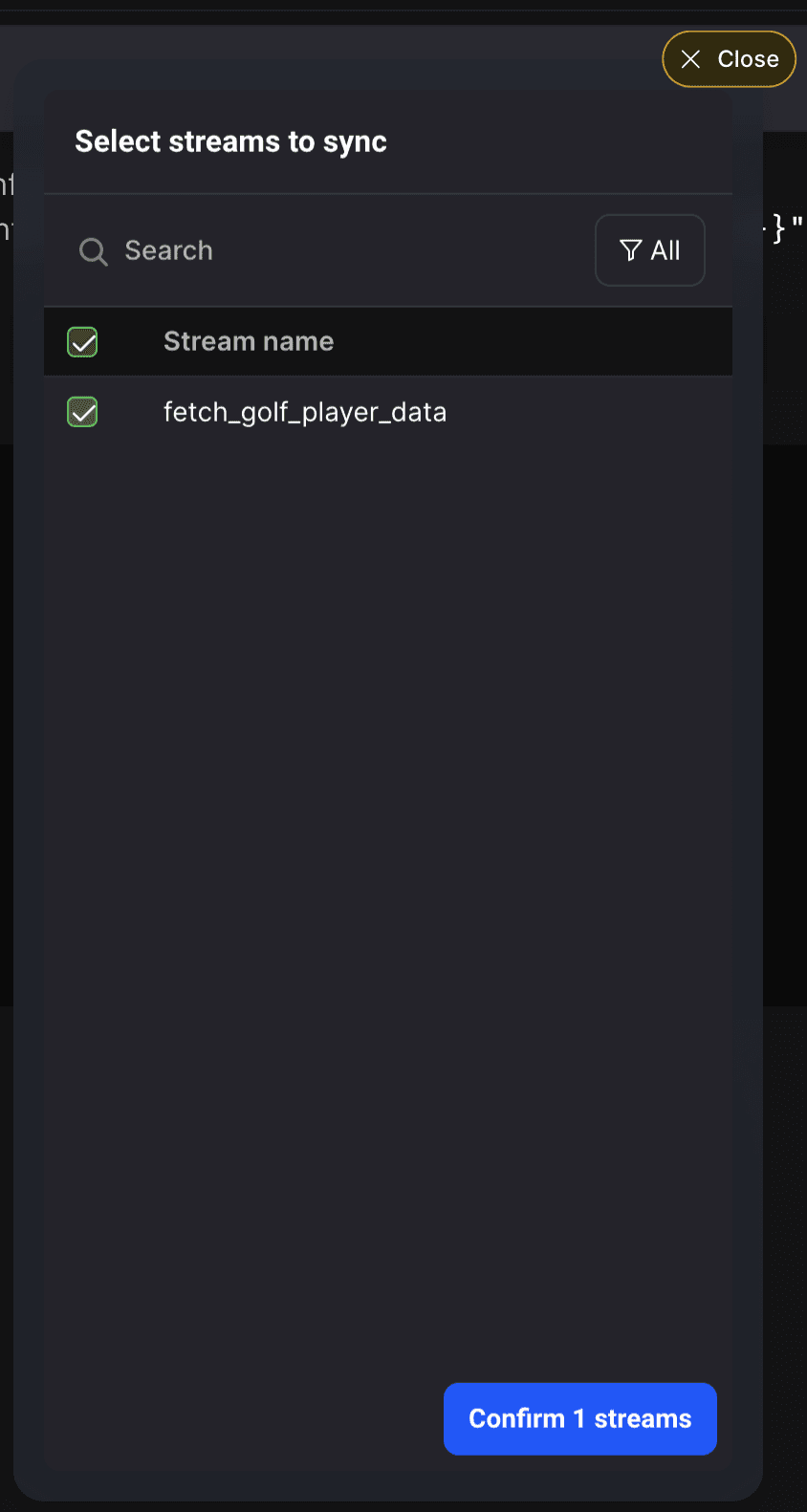
With a successful connection established, it's time to select the data streams you want to synchronize. Mage will display available streams from your SFTP source. Look for the stream corresponding to "fetch golf player data" and check the box next to it to confirm your selection.
After confirming the stream, allow a moment for Mage to load all column data associated with the selected stream. This data will include metadata and actual CSV content, which is essential for setting up your data integration.
Step 4: Configuring data replication methods
This is where one dropdown changes what you can honestly say about the result. Full Table synchronizes the complete record set returned by the source for that run. Incremental resumes from a saved bookmark or cursor. This walkthrough chooses Full Table for one CSV file.
This walkthrough configures one file and stops after the first run. It does not prove what happens when a later file arrives, a record is corrected, or an older file is made eligible for processing again.

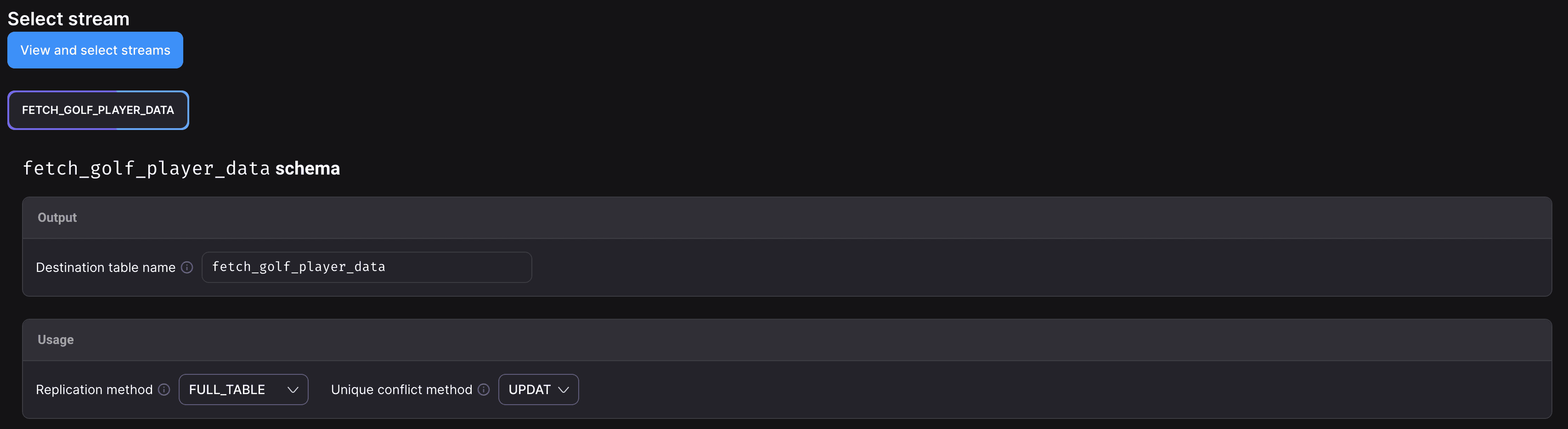
Before you compare two deliveries, write down the contract you are testing: the SFTP protocol; source folder, prefix, and file-matching rule; file name and modification time; Full Table or Incremental replication; bookmark or cursor; Mage Pro edition and build; BigQuery project, dataset, and table; unique key; and conflict method. If any of those change between runs, you are no longer testing the same contract.
For this golf data, player_id is selected as the unique field. With conflict handling set to Update, a row that reaches BigQuery with an existing unique key can update that destination row. Ignore keeps the existing row instead. Neither choice, by itself, guarantees exactly-once delivery or safe replay of any arbitrary file.
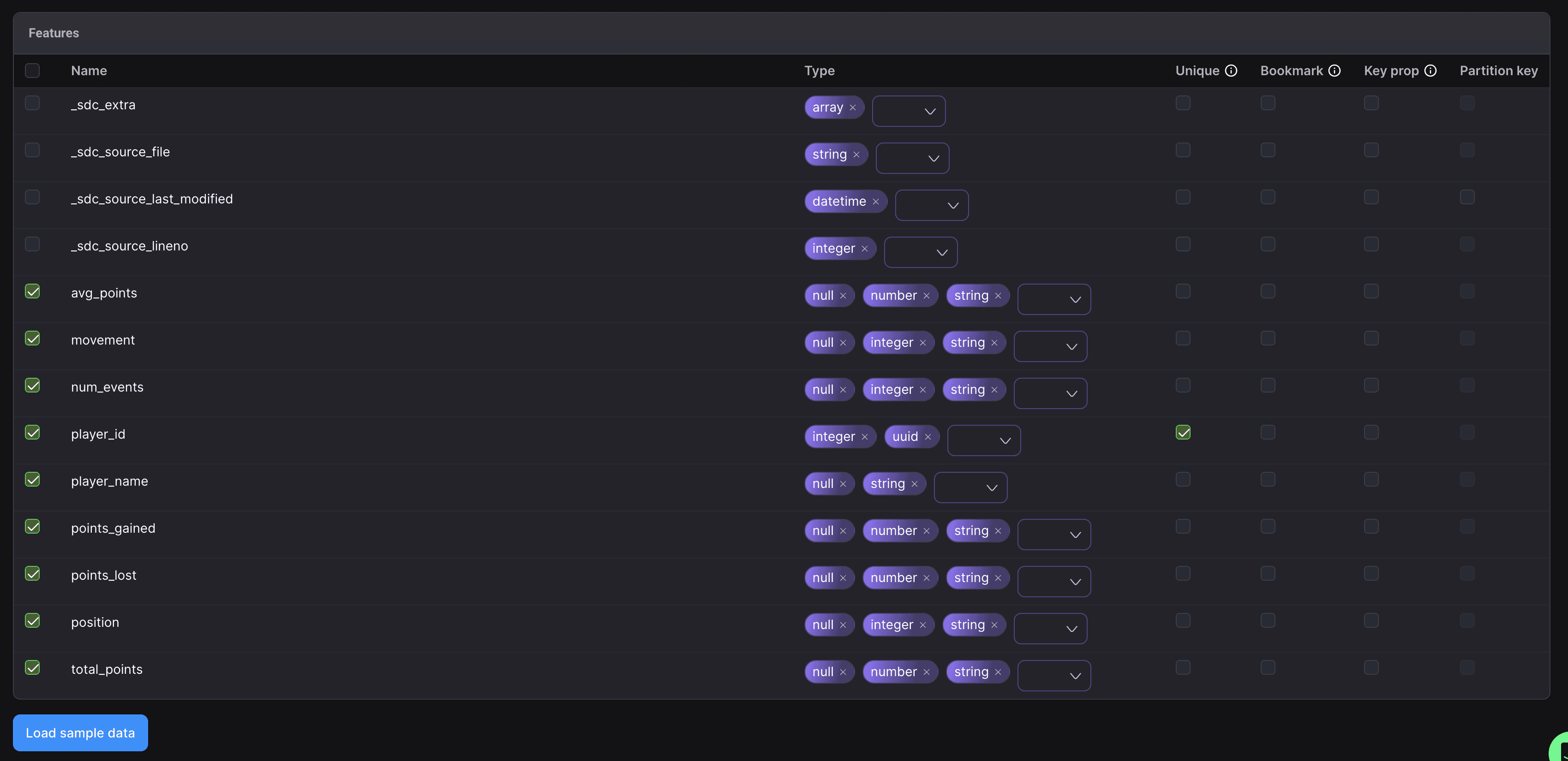
The sample schema also shows _sdc_source_file, _sdc_source_lineno, and _sdc_source_last_modified. Those fields are useful receipts for this example because they let you trace a warehouse row back to a source file and line. Confirm the fields emitted by your own Mage Pro version and configuration before depending on them.
Step 5: Transforming data
Transforming data may be necessary to meet specific analytics requirements. In Mage, you can access the transformation settings through the "Transformer" button. This feature allows you to apply various transformations to your data before it’s sent to Google BigQuery. Define any transformations needed, such as data calculations, aggregations, or filtering.
Step 6: Setting up Google BigQuery as destination
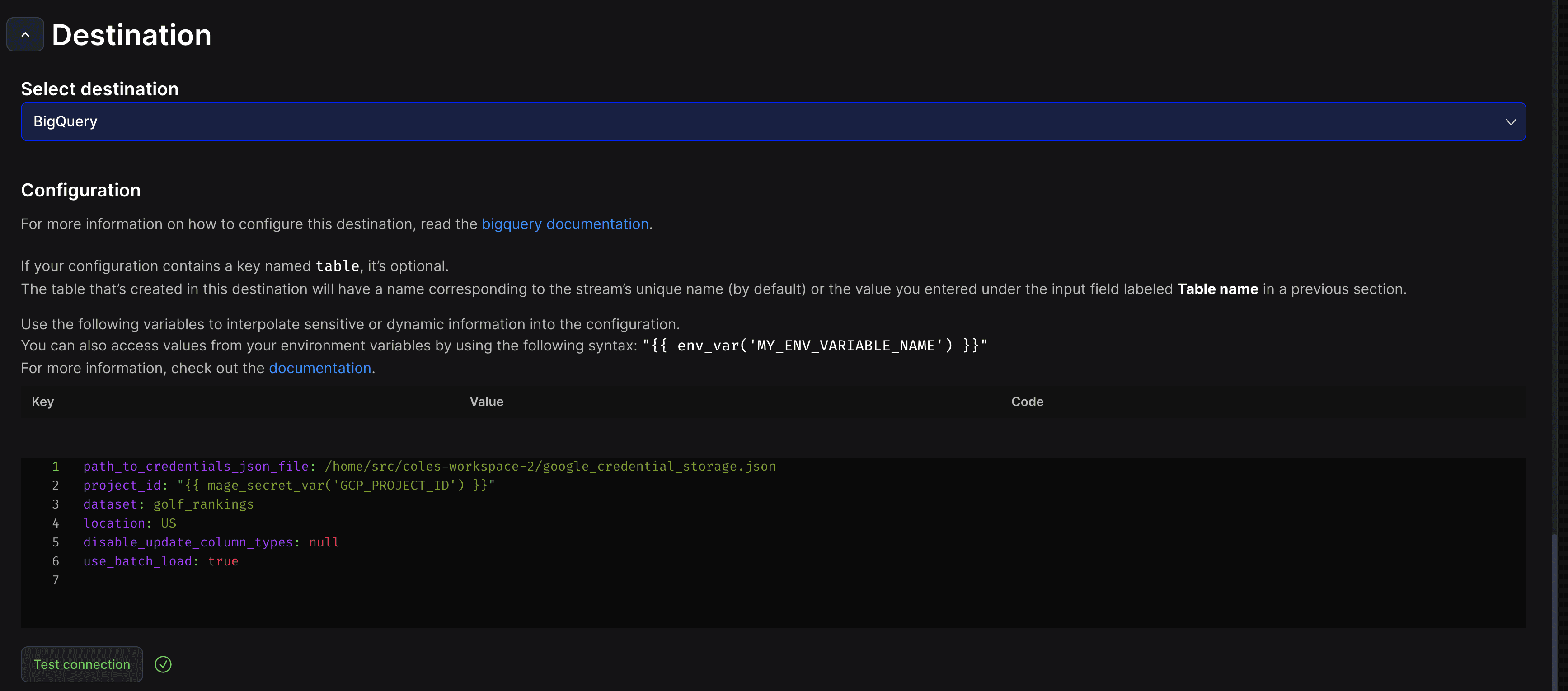
Next, we need to configure Google BigQuery as the destination for your data. In the pipeline editor, select BigQuery from the destination options. This action will generate another YAML configuration file.
Within this configuration, you will need to provide the path to your credentials file. This file is crucial as it authenticates your access to Google BigQuery. You can download the credentials in JSON format from your Google Cloud Platform account.
Additionally, specify your project ID and dataset name. For example, if your dataset is called "golf rankings," enter that in the configuration. Ensure that your location settings are correct, typically set to "US" for the United States.
With your destination configured, it’s time to test the data sync connection. Click the "Test Connection" button. A successful test indicates that your pipeline can communicate with Google BigQuery effectively.
Step 7: Triggering the data sync
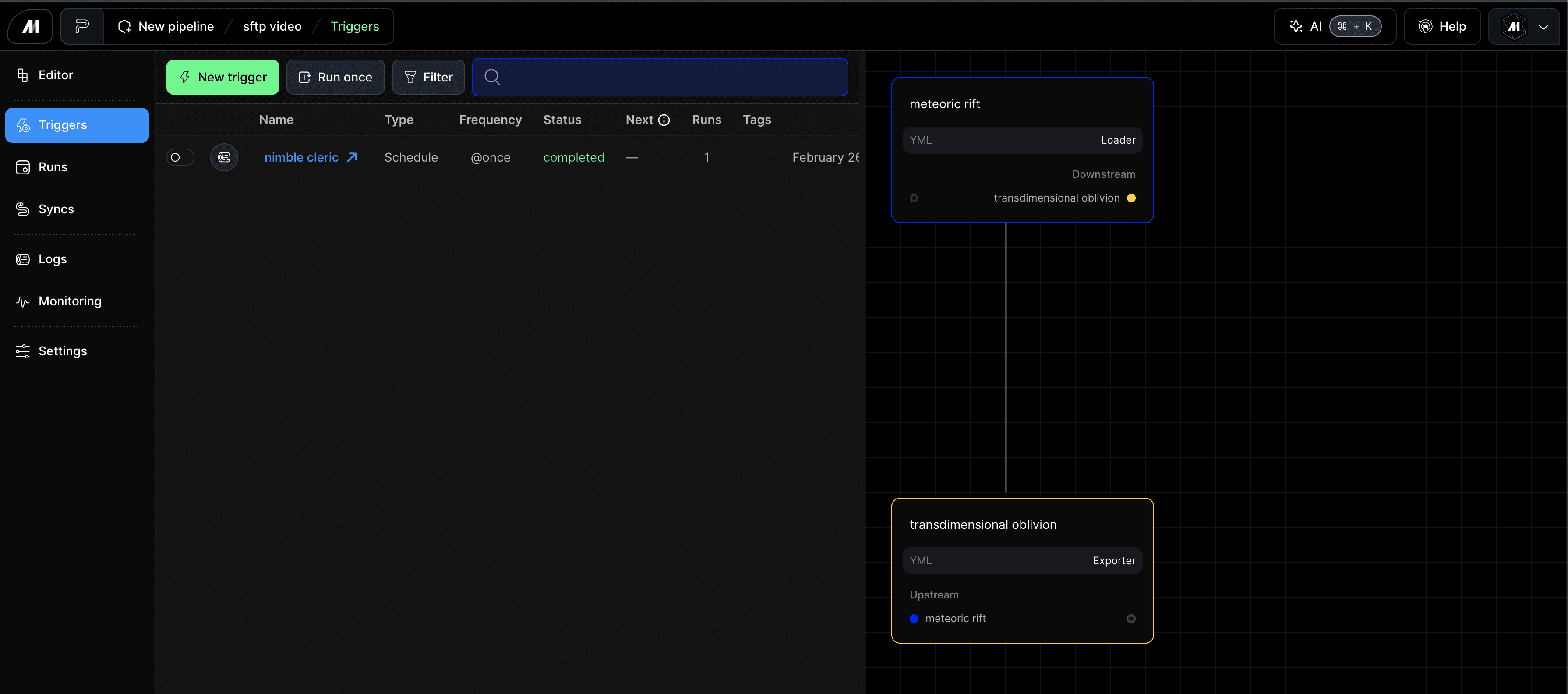
Once your data integration pipeline is fully configured and tested, it’s time to trigger the data sync. Navigate to the "Triggers" section in the left-hand menu. Here, you can create a new trigger or run an existing one.
For this demonstration, simply select the "Run One" trigger. This will initiate the data transfer process from your SFTP server to Google BigQuery. During this process, you can monitor the run's progress, and Mage provides detailed logging to help diagnose any potential issues.
Step 8: Verifying data synced to Google BigQuery
After the sync finishes, refresh BigQuery and open the destination table. A row count is a useful smoke test, but it cannot tell you which players arrived, whether their values are correct, or which file produced them. Query the business key, representative values, and the source receipts together:
SELECT
  player_id,
  player_name,
  total_points,
  _sdc_source_file,
  _sdc_source_lineno,
  _sdc_source_last_modified
FROM `your_project.your_dataset.your_table`
ORDER BY player_id, _sdc_source_file, _sdc_source_lineno;

SELECT
  _sdc_source_file,
  COUNT(*) AS row_count,
  COUNT(DISTINCT player_id) AS distinct_players,
  MIN(_sdc_source_last_modified) AS earliest_source_modified_at,
  MAX(_sdc_source_last_modified) AS latest_source_modified_at
FROM `your_project.your_dataset.your_table`
GROUP BY _sdc_source_file
ORDER BY _sdc_source_file;
Replace the table path with your destination. If your Mage Pro build emits different metadata fields, use the file identity and version fields you actually observe. Save the query output with the exact Mage Pro build and pipeline configuration used for the run.
The second-file contract to test
The public walkthrough stops after the first delivery, so the checks below are a validation protocol, not claimed results. Use controlled files with stable names and checksums, record the expected rows before each run, and keep the actual BigQuery rows afterward.
| Delivery | Pipeline action | Destination evidence to compare | What counts as a verified result |
|---|---|---|---|
| Initial file | Place the named baseline file in the configured SFTP path and run the pipeline. | player_id, selected values, source file, source line, source modification time, distinct keys, and total count. | Actual rows match the baseline fixture exactly. |
| Second file | Add a later named file without changing the pipeline contract, then run it again. | New and existing keys, their values and source receipts, plus counts before and after. | Actual rows match the second fixture's expected destination state. |
| Correction | Deliver a controlled file that changes one known player_id. | The corrected key, old and new values, source receipt, conflict method, and unchanged neighboring keys. | The observed row matches the behavior agreed for Update or Ignore. |
| Old-file replay | In a test environment, make the old fixture eligible again using the version-correct state or bookmark procedure, then rerun. | Duplicate count, values for replayed keys, source receipts, and total count. | The actual outcome matches the documented replay expectation, whether that is no change, an update, a duplicate, or a rejection. |
Adding or replaying a file causes the pipeline behavior. The SQL above only inspects the destination afterward. Do not reset production state just to run this test, and do not call replay safe until the expected and actual rows match on the Mage Pro build you named.
Conclusion
So what does this walkthrough actually establish? It configures an SFTP source, selects a Full Table delivery, connects BigQuery, runs the pipeline, and uses a row count as a first-run smoke test. The business-key query above is the next check to run; this article does not include recorded output from that query.
That smoke test is useful, but it is not proof that only new or updated records will be processed. It also does not prove second-file behavior, corrections, old-file replay, or exactly-once delivery. Those claims require the controlled fixtures and expected-versus-actual BigQuery results in the contract above, recorded against the exact Mage Pro edition and build you tested.
Looking to try out Mage Pro? Book your demo today!

Build an AI-Powered MCP pipeline with Mage Pro - Part 1: Extract, Transform, and Structure PDF Data for AI Integration

Connecting Microsoft Fabric to Mage Pro: A complete integration guide

Capture changes as they happen with the Mage MySQL CDC streaming source