Self-Healing Data Pipelines with AI — Built with Mage Pro
TLDR
Autopilot can investigate failed Mage Pro pipeline runs and prepare repairs when the cluster, project and self-healing routine are enabled. Repair actions follow the routine’s approval policy. Repair progress stays separate from pipeline status: fixing a block does not establish that the whole pipeline completed successfully.

Earlier interactive block-debugging demo. This historical video does not demonstrate the event-driven Autopilot routine or approval controls described below.
A failed run gives an operator two questions to answer: what can be repaired, and did the pipeline ultimately finish? Autopilot keeps repair activity and saved evidence beside the run, so you can inspect the proposed change and follow recovery without losing the original failure history.
How it works
A terminal pipeline failure can trigger a self-healing evaluation when the project and routine are enabled and Autopilot is available on the cluster. Autopilot evaluates the failure and prepares a proposed repair. Depending on the approval policy, an action can run immediately or wait for a user with permission to decide.
A repair can update affected code and retry failed or incomplete work. Recovery may use the original pipeline run or a separate recovery run. Where a separate recovery run exists, the repair details can provide its link. Review the run that actually executed rather than assuming every repair used the same recovery path.
Check the project and routine before expecting a repair
Open /apps/autopilot in the Mage Pro workspace. Overview controls project opt-in; Routines contains the self-healing routine and its configuration. Project opt-in alone does not enable that routine. Confirm both settings before expecting a failed run to start an evaluation.
Cluster availability is a separate gate. Setting AUTOPILOT_ENABLED=0 disables Autopilot regardless of project opt-in. Enabling a project requires Editor, Admin or Owner access. Routine configuration, approval decisions and evidence have their own permission checks; the controls visible to one user do not establish another user’s access.
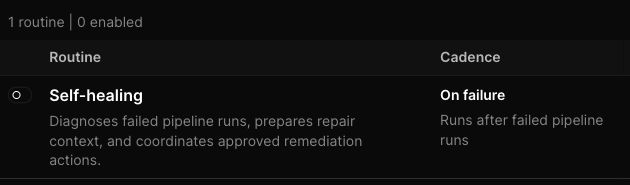
Choose how repair actions are authorized
Review the routine’s approval policy before enabling it. If operators need to inspect a proposed repair before it changes code or starts recovery work, configure approval accordingly. An action that requires approval waits for an authorized user to approve or reject it; the decision remains available for review.
Keep project-specific instructions with the routine. Settings, repair records and approvals belong to the active workspace and project. When investigating a failure, confirm that you are viewing the same project as the affected run.
Read repair progress alongside pipeline status
An Autopilot chip appears only when the run has an associated self-healing record. Its repair context does not replace the pipeline’s underlying status. Use the two together:
| Repair context | What it establishes |
|---|---|
| Healing | Autopilot is actively working on a repair. |
| Retrying | The associated pipeline run is retrying. |
| Partially healed | At least one repair completed, but the pipeline has not completed successfully and no repair or retry is active. |
| Healed | The associated pipeline run completed successfully and has a self-healing record. |
A successfully completed associated run takes precedence over stale repair state. Earlier failed repair attempts remain part of the history; they are not rewritten as successes. A completed repair on one block can remain visible while another block is still healing.
Inspect the evidence before closing the incident
Open the run’s Autopilot chip to inspect the available repair history. Check which block each result concerns, whether it was fixed or remains unresolved, the explanation and captured code changes, and any recovery-run link. Repeated repairs to the same block remain separate results.
Activity shows failure events, dispatch and recovery activity; Evidence exposes available artifacts and execution steps. Loading or connection problems do not establish a repair result. Confirm the actual run outcome and apply your output checks before treating downstream data as ready. A successful run and a repair record do not, by themselves, establish every business validation you need.
Why it matters
The useful handoff is a proposed repair you can govern and inspect, followed by a recovery outcome you can verify. Automatic repair can take on eligible failure work while retaining operator oversight. It is not a promise that every failure will be fixed, every validation will pass, or no manual work will be needed.